Adding New Link Types#
If your location uses other social media accounts other than Twitter, Facebook, or GitHub (e.g. WeChat, Tumblr, LinkedIn, Instagram, vkontakte, Renren, Mixi, whatever), or uses a different event publishing site/medium than Meetup.com (e.g. EventBrite), you’re definitely able to publish that.
Tip
Perhaps someone already has done the legwork to add an attribute for your particular site (and these docs aren’t updated). Save yourself some time and check the www/config.yml. You may only have to edit the config file then!
Step 1: Pick a Config Attribute#
We’ll do a full example. Let’s say that Twitter was not already there, and we wanted to add it.
We should start by picking a good config attribute (similar to the Attributes above). A good config attribute here would be simply twitter:
- name: A New PyLadies City, Foo
  twitter:  twitter.com/foo-pyladies
Step 2: Pick an Icon#
We currently already use entypo. If you find an icon that you’d like to use that entypo already has, take note of its name. You can do this by right-clicking the icon you like on the entypo site and select “Inspect Element” to see the name of it:
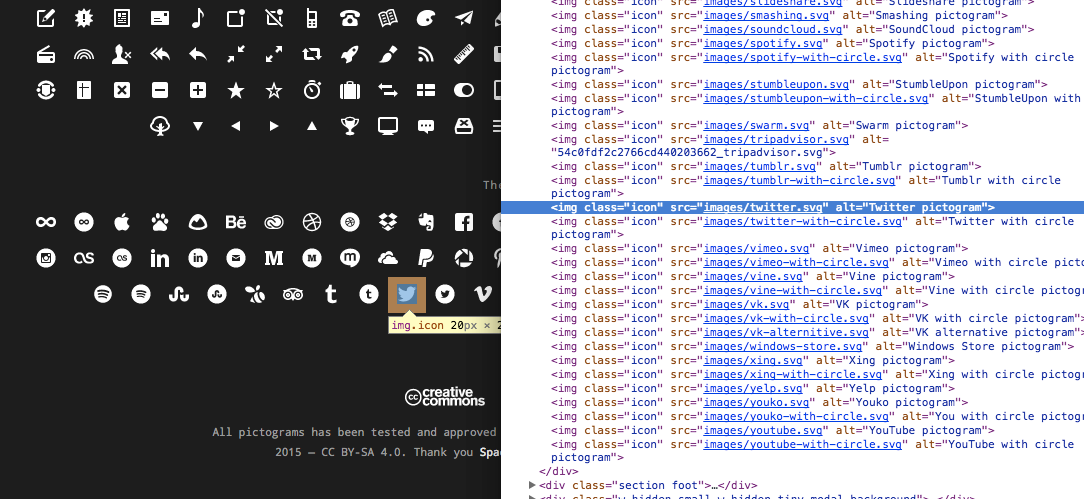
The icon name here would be twitter (not including the .svg or images/).#
If entypo doesn’t have an icon that matches your social network, or that you like, read on to Adding non-Entypo Icons.
Note
All the entypo icons (e.g. the actual pictures/fonts) are already in the PyLadies repository.
Step 3: Add Icon to HTML Template#
Next, in your text editor, open up the location’s template file, www/locations/index.html. Then, where it says <h3 class="chpts social-icons"> add the Jinja template information.
The following example uses the above twitter icon previously selected:
{% if chapter.twitter %}
    <a href="{{ chapter.twitter }}" title="Twitter Link"><i class="twitter"></i></a>
{% endif %}
The {% if chapter.twitter %} checks to see if there’s a config attribute set for a chapter, and if it is, it will create a link using the value that is set.
Notice <i class="twitter"></i> - this will actually put the icon (named twitter, which we figured out in the previous step) there, and make a link.
Step 4: Add your Config, Commit, & Push!#
Save your edits, and test to see if it looks okay (refer to Using mynt for how to test your changes).
If all looks good, then commit, push to your fork of the PyLadies repository, then submit a pull request!
Adding non-Entypo Icons#
If your icon isn’t made by entypo, you don’t like any of them, or found an icon elsewhere (e.g. FontAwesome), follow their instructions for setting up their icons.
You still must follow Step 3: Add Icon to HTML Template for the icon to show up in the template. The Jinja2 syntax is the same (e.g. {% if chapter.twitter %} or {{ chapter.twitter }}), but the HTML to represent the icon itself may be different. Again, refer to their particular instructions.